
SM64CoopDX
SM64CoopDX, also called Super Mario 64 Coop Deluxe, is an online multiplayer version of the Super Mario 64 PC port. It lets players explore the game together, supports up to 16 players, and includes widescreen, uncapped frame rates, customization, and Lua mods.
Before you start
- A Windows PC
- Your own clean Super Mario 64
.z64ROM - An internet connection for online play
- A controller if you want to use one
This guide does not include a Super Mario 64 ROM. Make the .z64 file from your own game cartridge.
Install it on Windows
- Open the official SM64CoopDX website.
- Follow its download link to the latest GitHub release.
- Expand Assets and download
sm64coopdx_Windows.zip. - Unzip the downloaded folder.
- Open the game's
.exefile. - When the game asks for your ROM, drag your Super Mario 64
.z64file into the window. - Wait for setup to finish, then start playing.
An Xbox controller should be detected automatically. If it is not, open Options and check the controller settings.
Join an online game
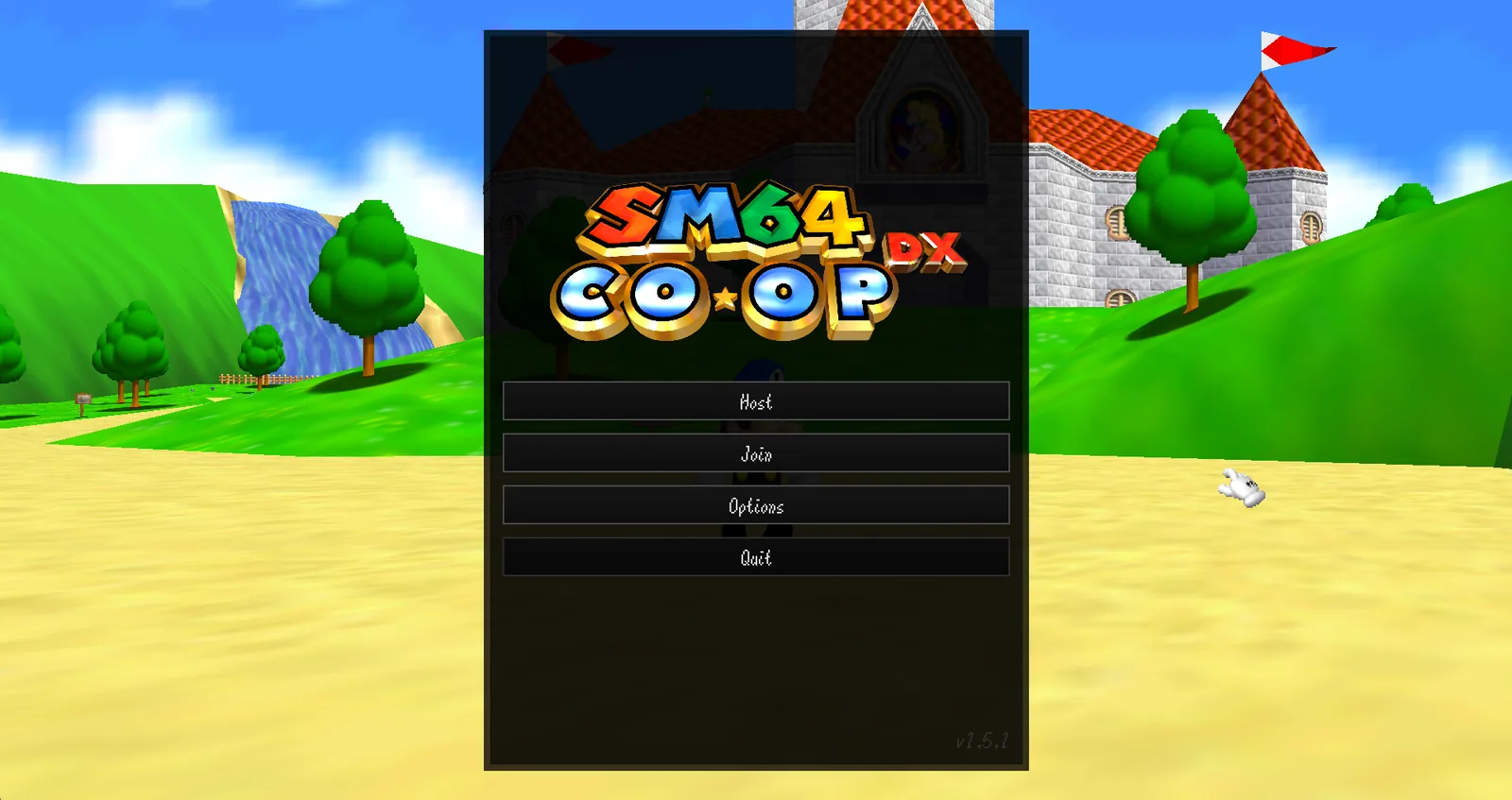
- Select Join on the main menu.
- Choose one of these connection types:
- Public Lobbies shows open CoopNet games that anyone can join.
- Private Lobbies lets you join a password-protected CoopNet game or use a Discord invite.
- Direct Connection lets you enter a host's IP address and port.
- Choose the lobby or enter the connection details, then follow the prompts to join.
Host your own lobby
- Select Host on the main menu.
- Choose CoopNet or Direct Connection.
- Pick your lobby settings and start the game.
CoopNet (recommended)
CoopNet is the easiest choice for most people because it helps other players find and connect to your lobby without requiring you to share your IP address or configure port forwarding.
- Leave the password empty to make a public lobby that appears in Join → Public Lobbies.
- Set a password to make a private lobby that friends can join with the password or a Discord invite.
Direct Connection
Direct Connection hosts the game from your PC. Your friends connect with your public IP address and port. The default port is 7777 using UDP.
You may need to forward the port in your router and allow the game through your firewall. Router settings and NAT restrictions can prevent a direct connection from working, so use CoopNet unless it is unavailable or you specifically want to connect by IP.
Customize the game and use mods
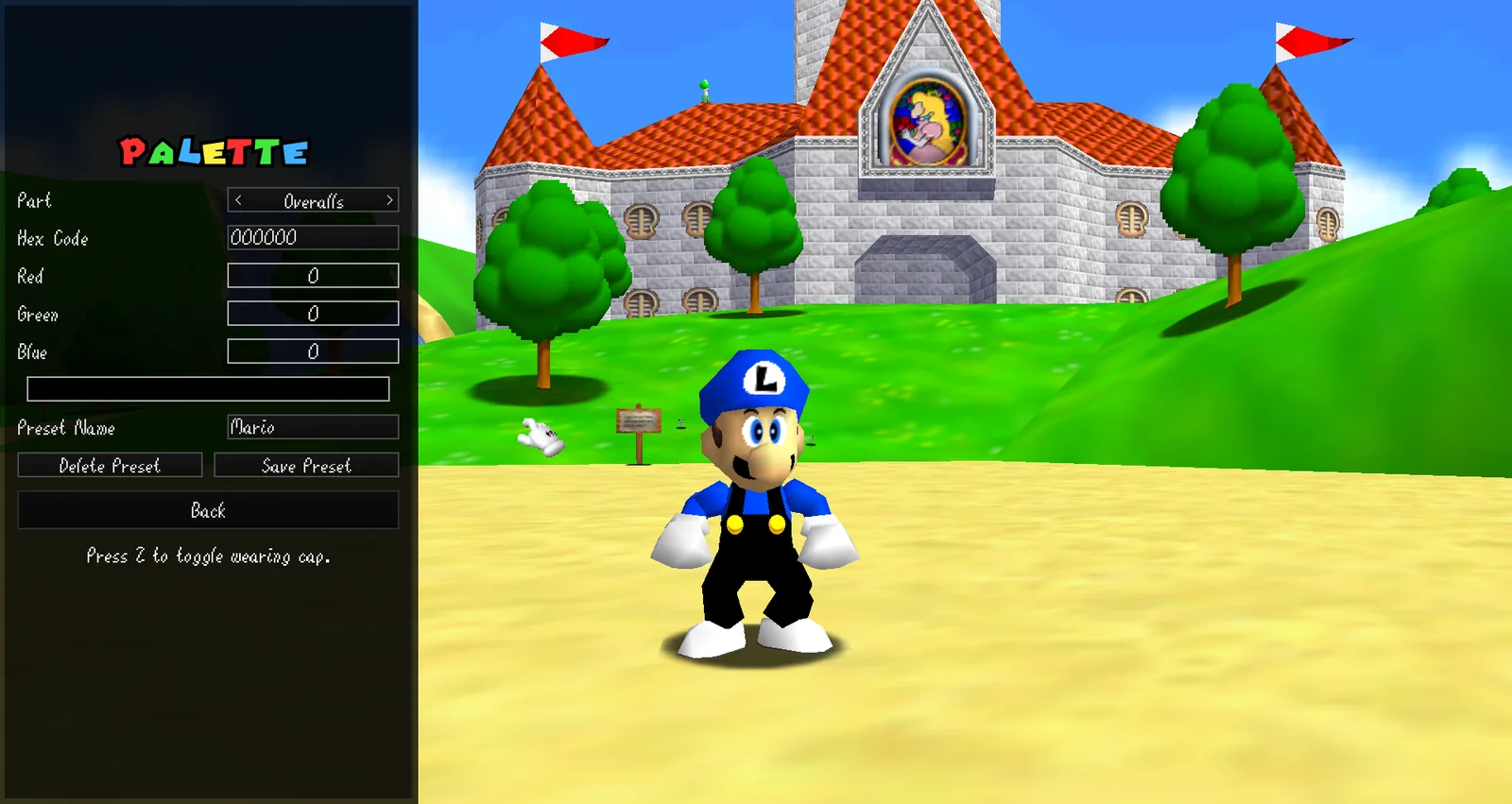
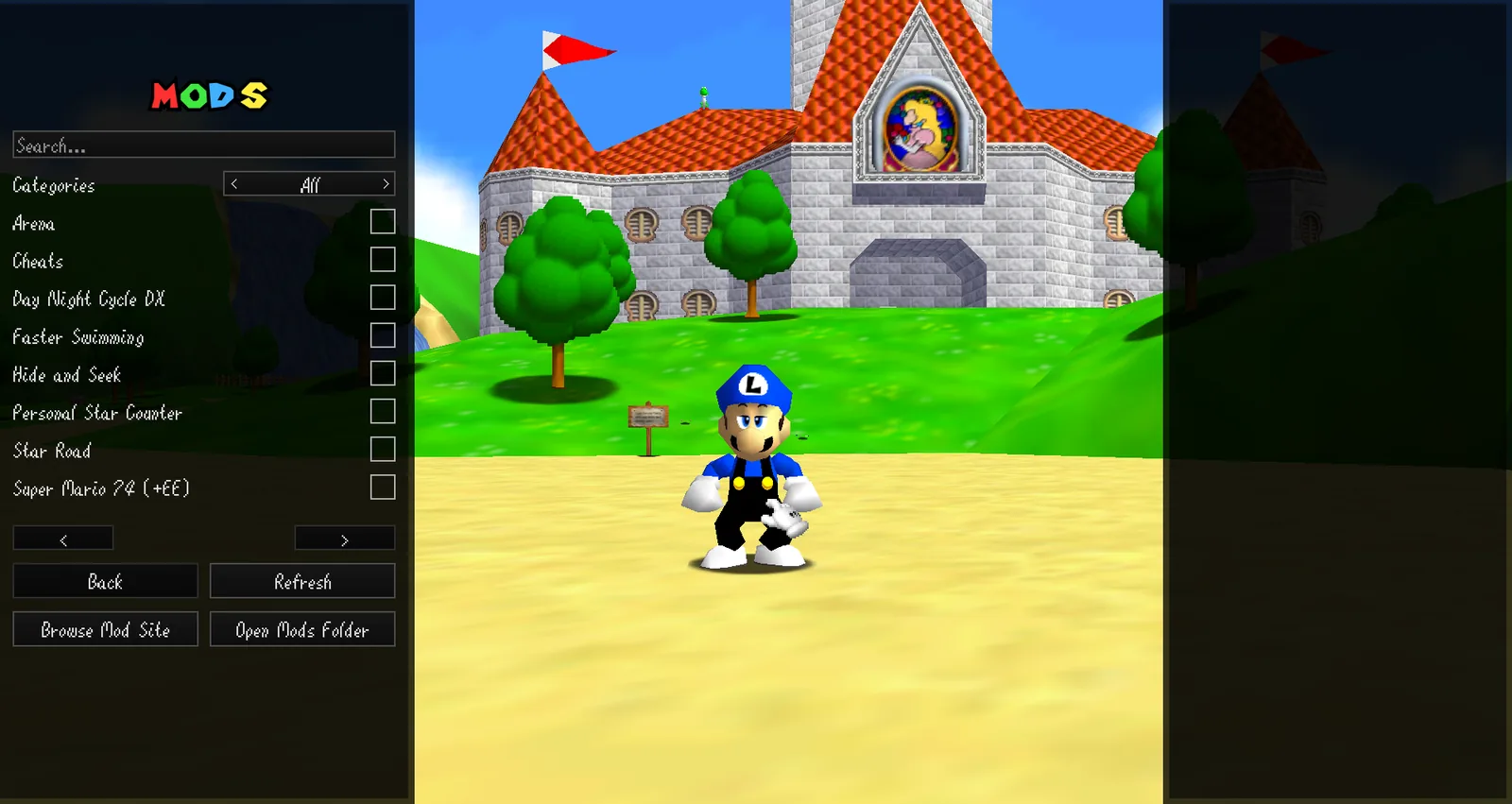
The Options menu includes a palette editor for changing character colors. The Mods menu lets you browse, enable, and manage compatible mods.
Sources: Official website and setup instructions · Official project and features · Latest release · Hosting and joining guide · SteamGridDB artwork